PDF for Fluent Forms generates a PDF from every submission of a Fluent Forms form and attaches it to the form’s email notifications. The PDF is designed with a drag and drop template builder and filled with the submitted values through Fluent Forms smart codes.
Step 1 — Create a PDF template (optional)
A ready made template, Fluent Forms Default, is created on activation. To customize it or create your own, go to PDF Templates in the WordPress admin menu, open the template or click New Template.
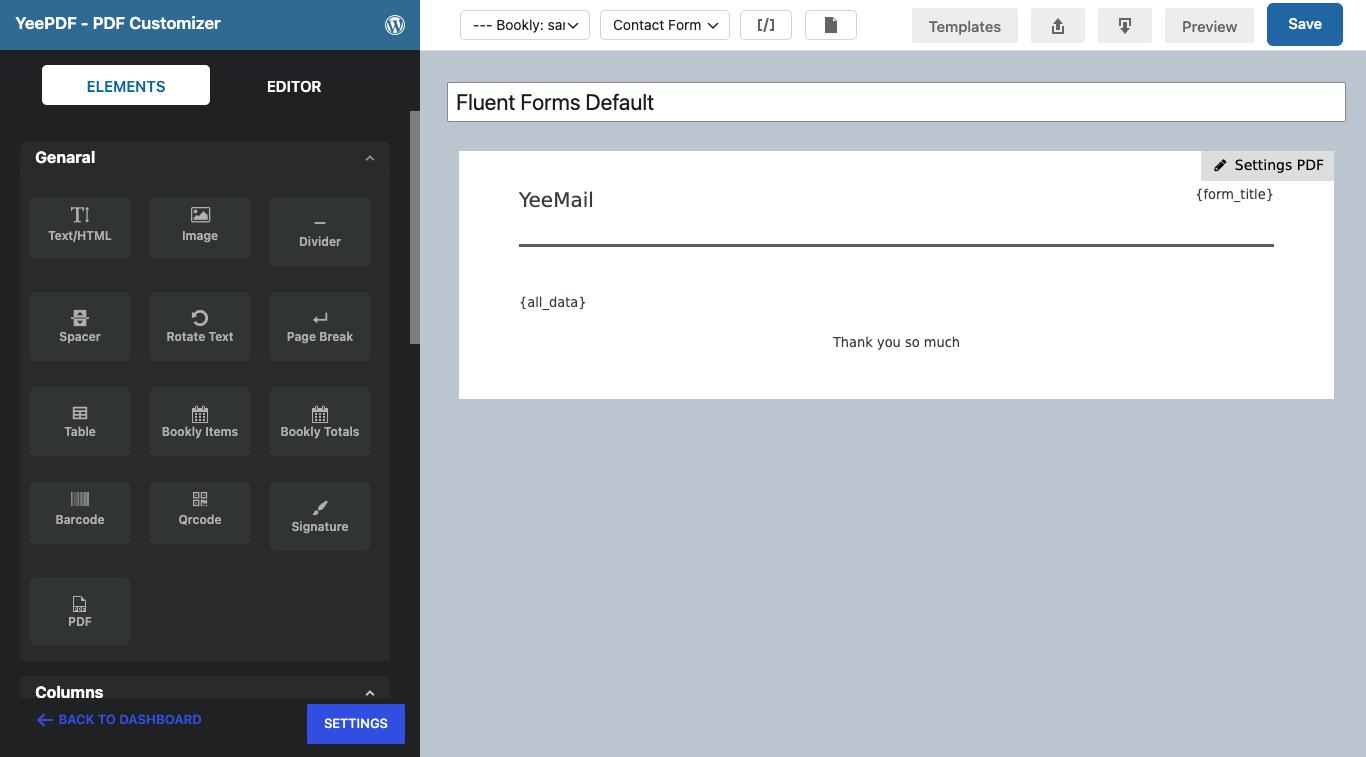
Pick your form in the form dropdown at the top of the editor: the shortcode panel (the [/] button) then lists the fields of that form in the Fluent Forms group, e.g. {inputs.names.first_name}, {inputs.email}, {inputs.message}, plus {all_data} (every submitted field as a table), {form_title}, {submission.id}, {submission.created_at} and the user codes. Any Fluent Forms smart code works.

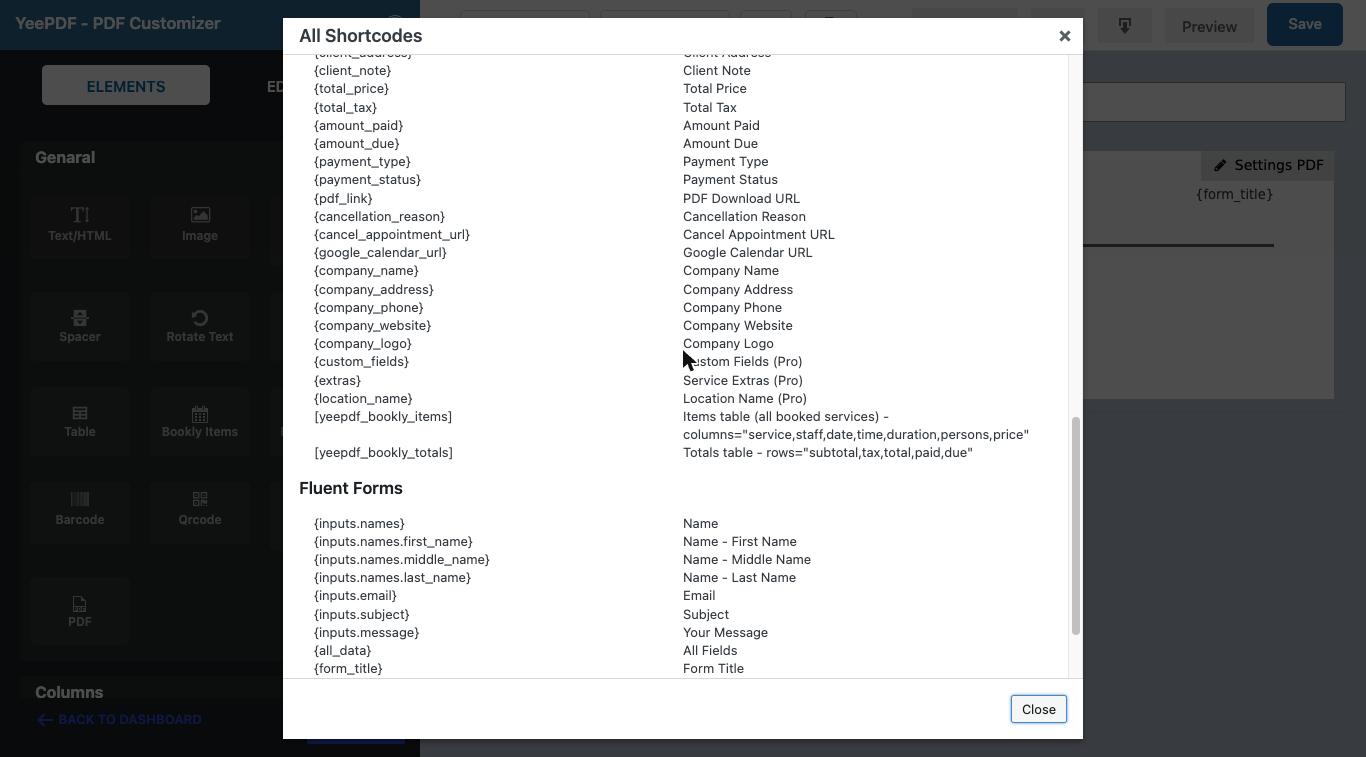
Drag blocks (text, image, divider, table, QR code…) into the page, click a block to edit its content and style, then Save.
Step 2 — Connect the template to your form
- Edit your form in Fluent Forms and open Settings & Integrations > Configure Integrations.
- Click Add New Integration and choose PDF Template Feed.
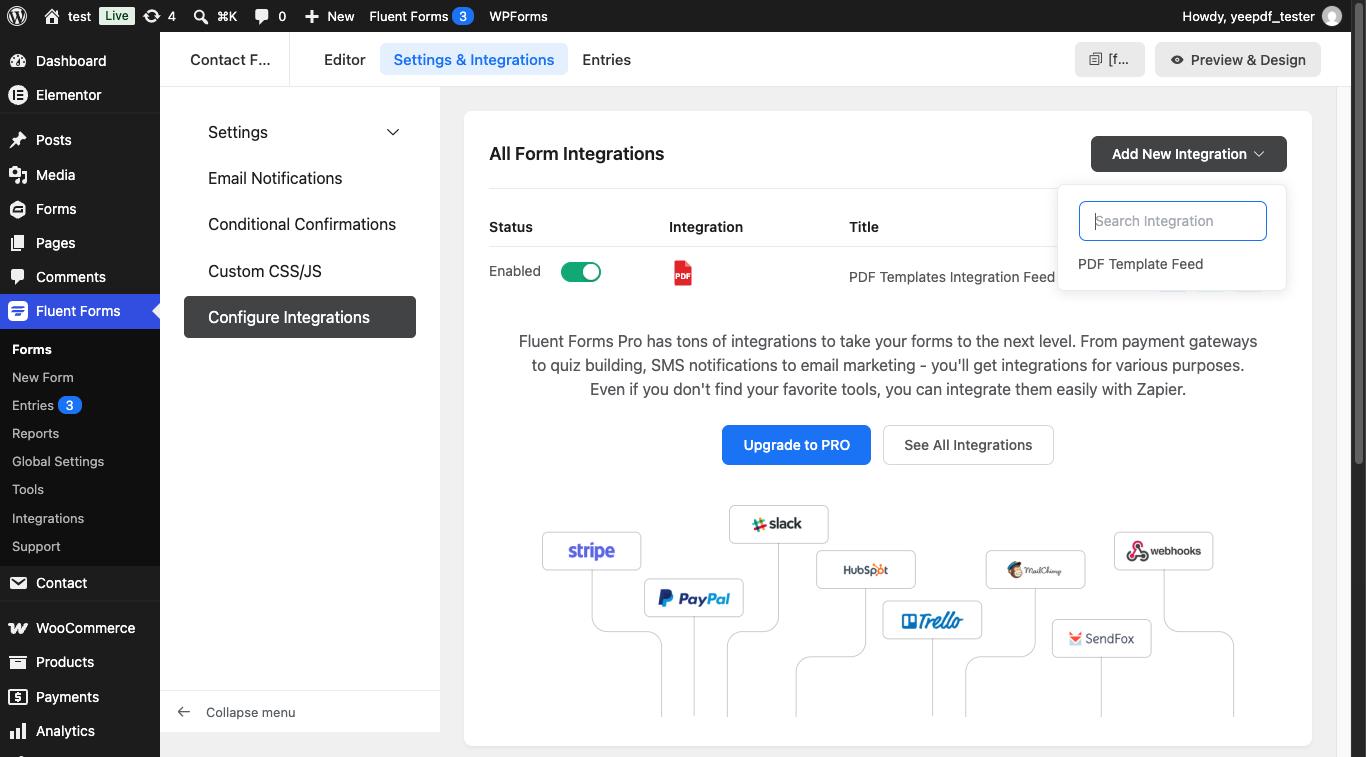
- Fill in the feed:
- Name – a label for this feed.
- PDF Template – the template to generate (required).
- File Name – name of the generated file, without extension. Smart codes are supported, e.g.
invoice-{submission.id}or{inputs.email}. Leave empty to auto-generate. - Password Protection – optional password for the PDF (smart codes supported).
- Email Notifications (Pro) – attach the PDF only to the ticked notifications; the free version attaches it to every notification of the form.
- Save a copy to Dropbox (Pro) – available once Dropbox is connected under PDF Templates > Settings.
- Click Save Feed.
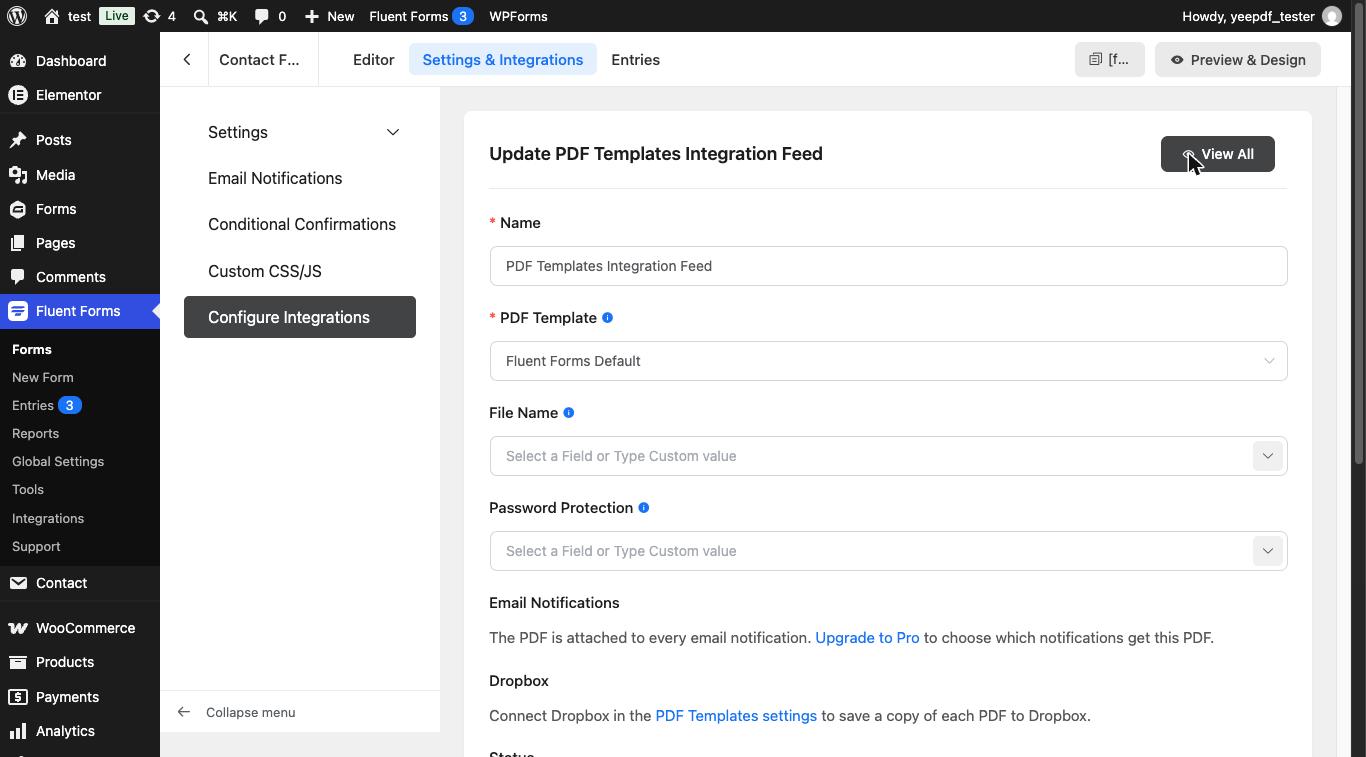
The feed appears in the integrations list of the form. Use the toggle to disable it, or the actions to edit, duplicate or delete it. The free version allows one PDF feed per form; the Pro version lets you add several (e.g. an invoice for the customer and a summary for the admin).
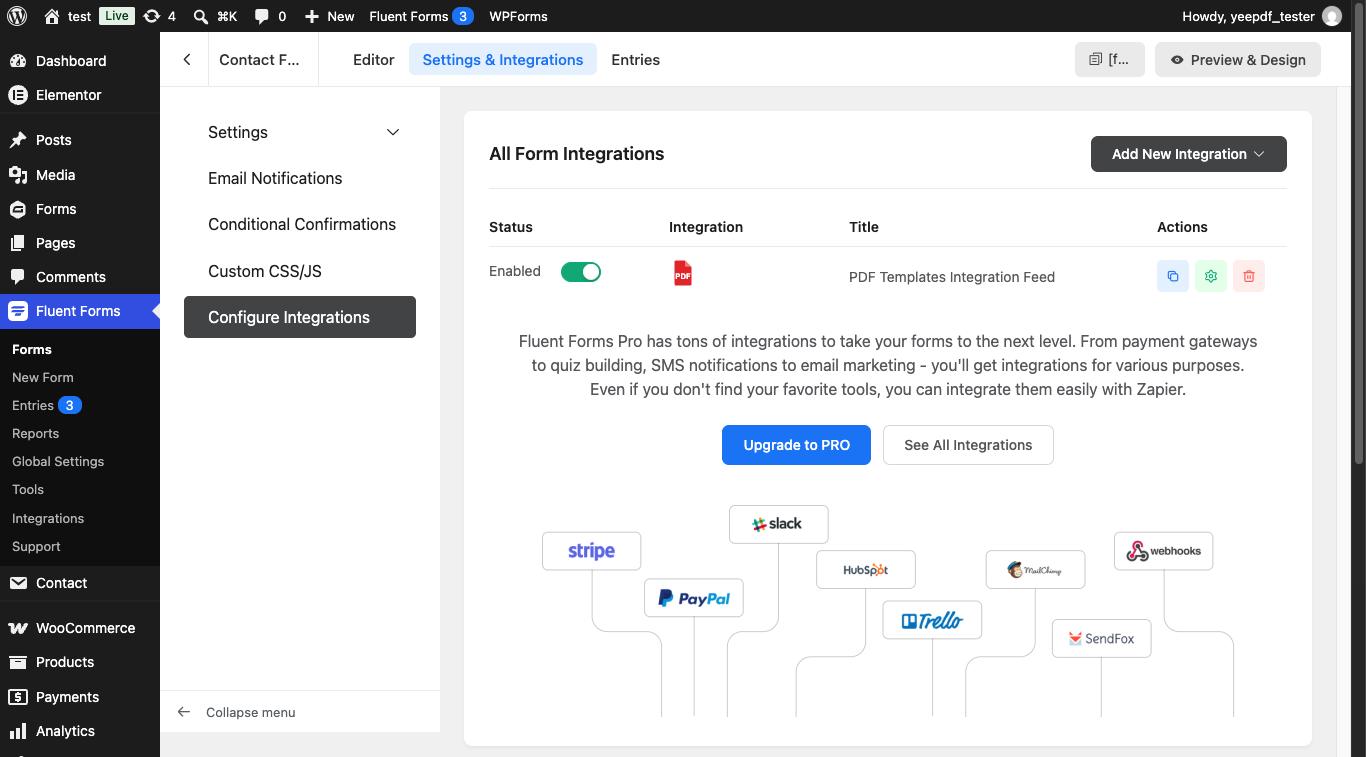
That’s it. From now on, every submission of this form generates a PDF from the chosen template and attaches it to the form’s email notifications. The download URL of the last PDF is also stored with the entry.
Tips
- Codes of name and address fields can be used per sub field:
{inputs.names.first_name},{inputs.address.city}… - Use Conditional Logics on the feed (Fluent Forms Pro) to generate the PDF only for some submissions.
- The PDF is generated once per submission and reused by every notification of that submission.