PDF for Bookly generates a PDF (invoice, booking confirmation, ticket…) from every Bookly appointment and attaches it to the Bookly email notifications you choose. It works with the free version of Bookly; Bookly Pro only adds a few extras (see the end of this page).
Step 1 — Choose the notifications that get the PDF
- Go to Bookly > PDF Invoices in your WordPress admin menu.
- PDF Template – the template to generate. “Bookly Default” is created on activation; you can design your own (Step 2).
- Email Notifications – tick the Bookly email notifications that should carry the PDF (e.g. “Notification to customer about approved appointment”). Only the ticked notifications get it.
- File Name – name of the generated file, without extension. Bookly codes are supported, e.g.
invoice-{booking_number}. Leave empty to auto-generate. - Password Protection – optional password for the PDF (codes supported).
- Click Save Changes.
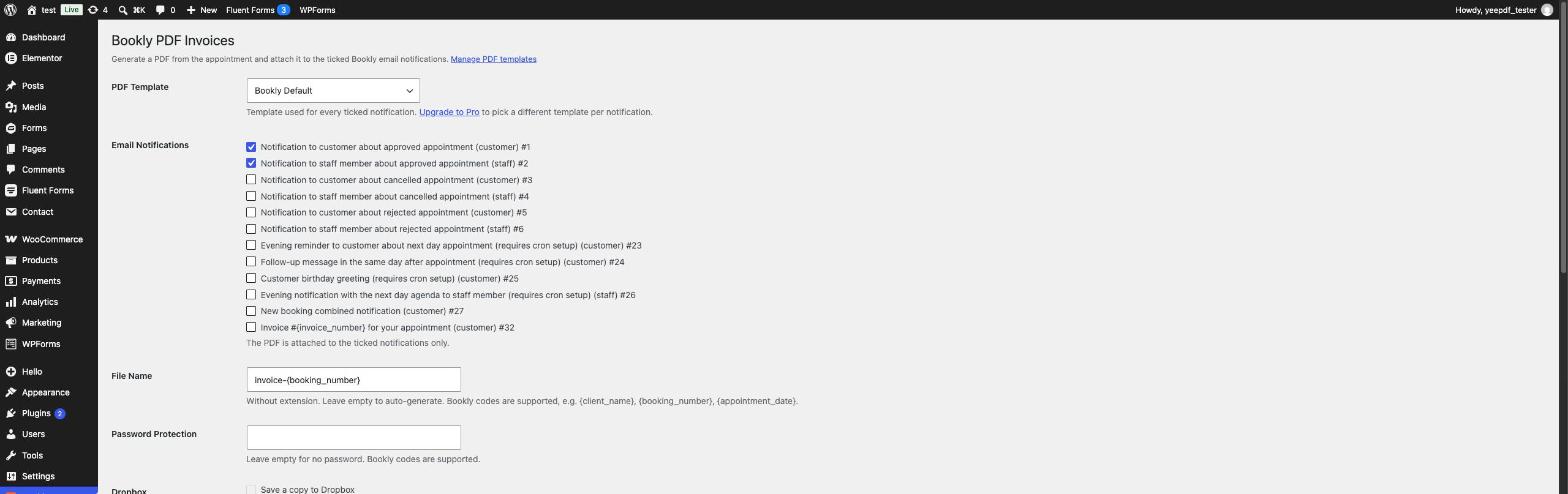
That’s it: from now on, every time Bookly sends one of the ticked notifications, the PDF is generated from that appointment and attached to the email.
Step 2 — Design the PDF template (optional)
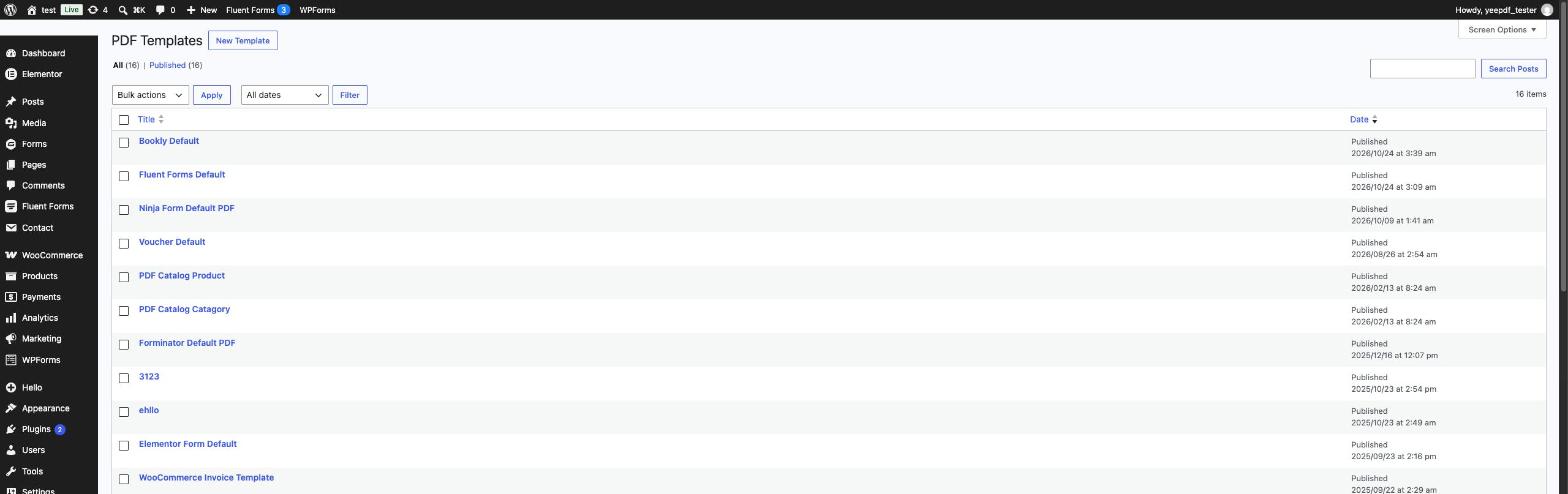
Go to PDF Templates in the admin menu. Open Bookly Default to customize it, or click New Template.
The template editor is a drag and drop builder: drag blocks from the left panel into the page, click a block to edit its content and style. The default template already contains your company details (from Bookly > Settings > Company), the customer, the appointment, the staff member, the booked services and the totals.
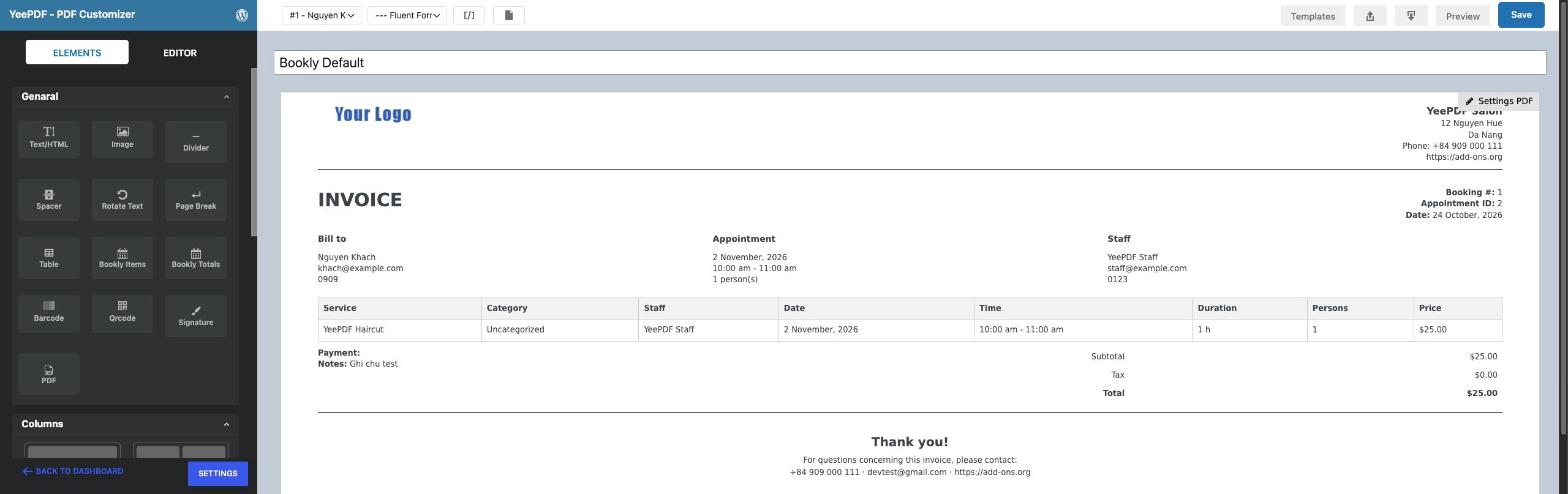
Bookly Items and Bookly Totals blocks
Two blocks are dedicated to bookings. Bookly Items lists every booked service of the order (one row per service – it also works with the Bookly Cart add-on). Bookly Totals shows subtotal, tax, total, paid and amount due. Select the block to switch columns or rows on or off and to style the table header, rows, cells and borders.
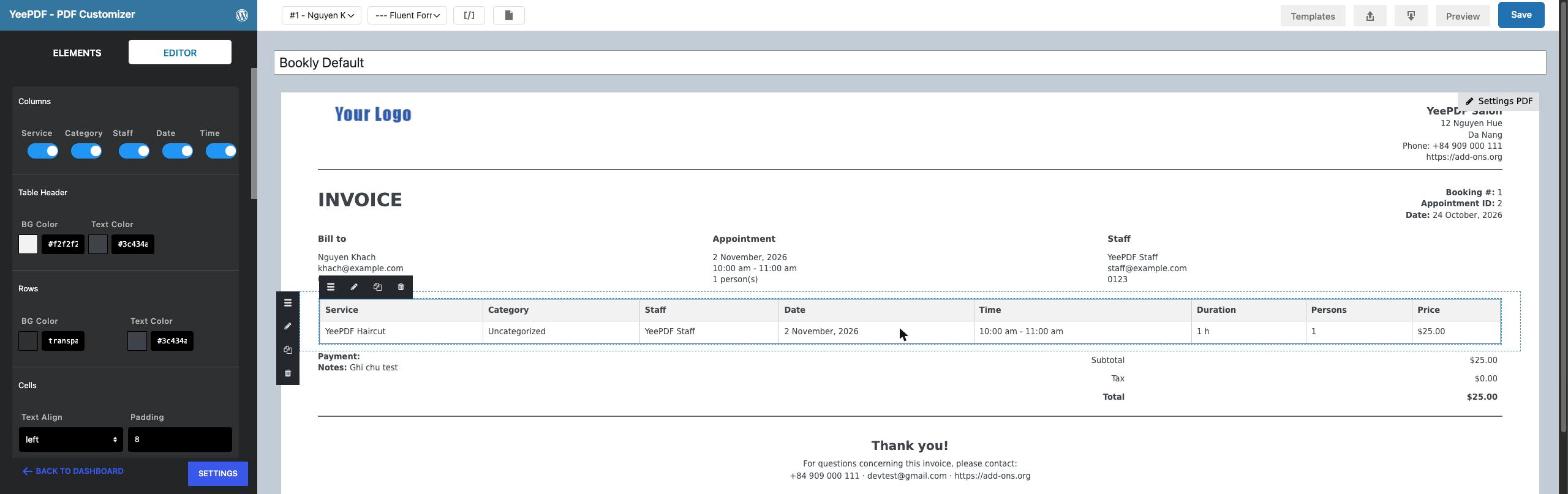
They are also available as shortcodes for a Text block: [yeepdf_bookly_items columns="service,staff,date,time,duration,persons,price"] and [yeepdf_bookly_totals rows="subtotal,tax,total"].
Bookly codes
Click the [/] button at the top of the editor to open the list of codes. The Bookly group contains the appointment, service, staff, customer, payment and company codes – the same ones Bookly uses in its notifications: {client_name}, {appointment_date}, {appointment_time}, {service_name}, {staff_name}, {booking_number}, {total_price}, {company_name}…
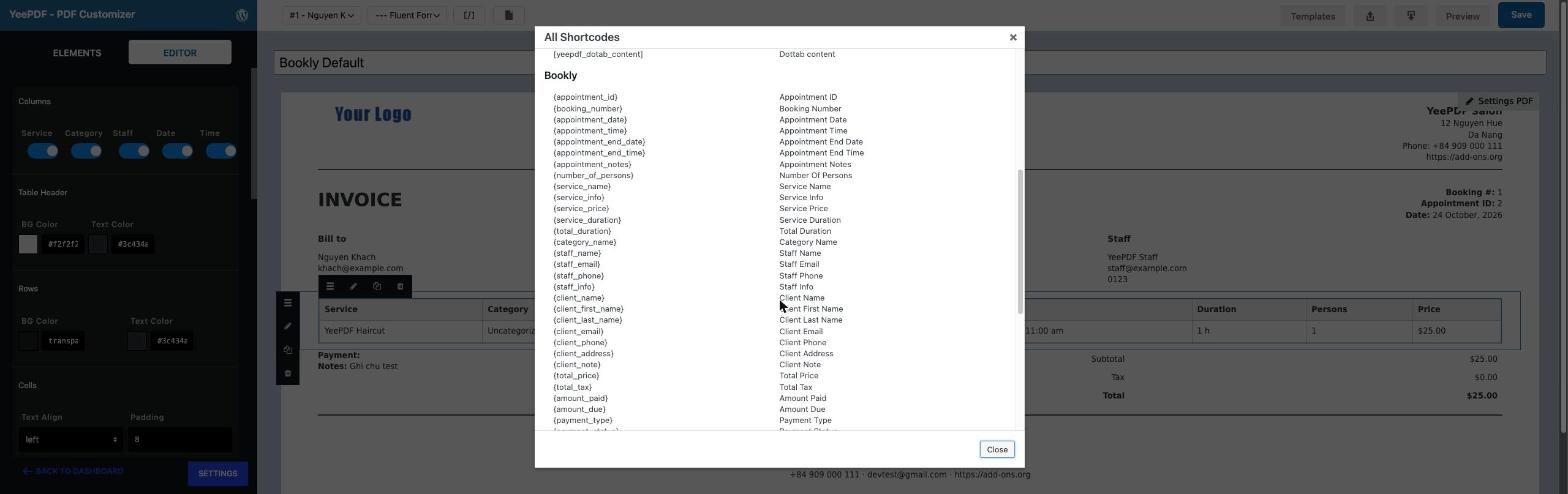
Preview with a real appointment
The first dropdown at the top of the editor lists your latest appointments. Pick one (or “sample data”) – the canvas and the Preview button then show the PDF with real values instead of codes.

Step 3 — Download PDFs from Bookly > Payments
Every payment in Bookly > Payments has a PDF action (download icon at the end of the row). Tick several payments to download them at once, or use Download all PDFs for the filtered list.
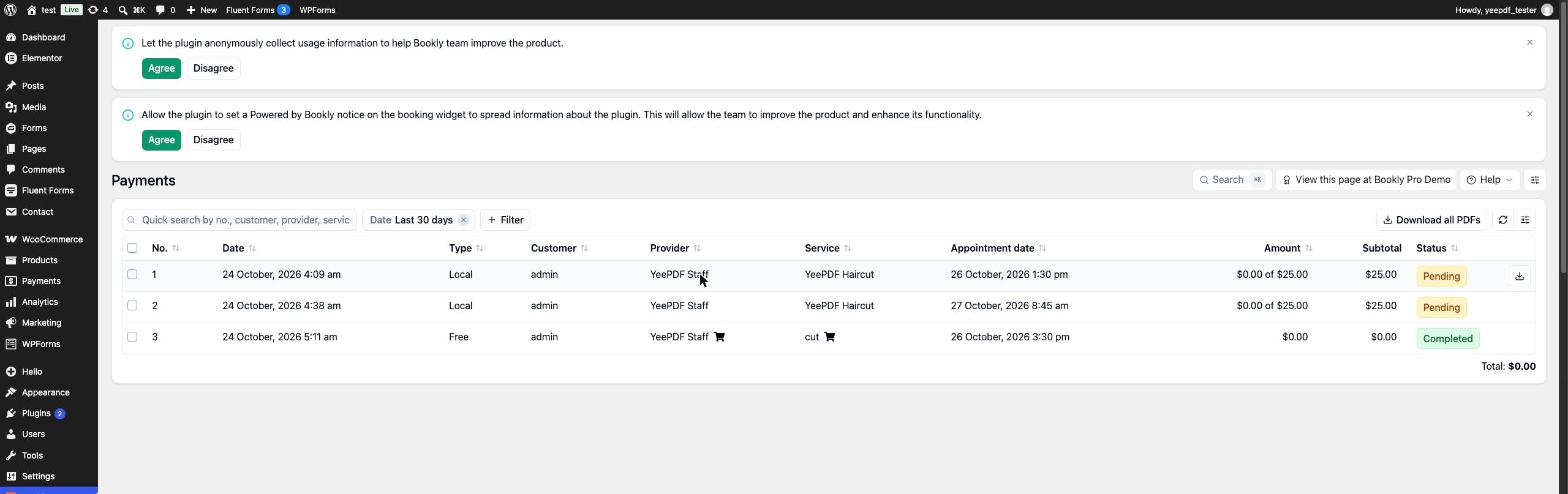
With Bookly Pro
- The same settings are also available under Bookly > Settings > PDF Invoices.
- The code
{pdf_link}is available in the notification editor to put a download link of the PDF in the email body. - The booking form can show a Download PDF button on the last step: enable it under Bookly > Appearance, step “Complete” (the label is editable there).
Troubleshooting
The PDF is not attached to the emails. Bookly must send its emails through WordPress: Bookly > Settings > Email > Send email as: WP mail (the default). If Bookly’s own SMTP setting is used, switch it to WP mail and use an SMTP plugin instead.