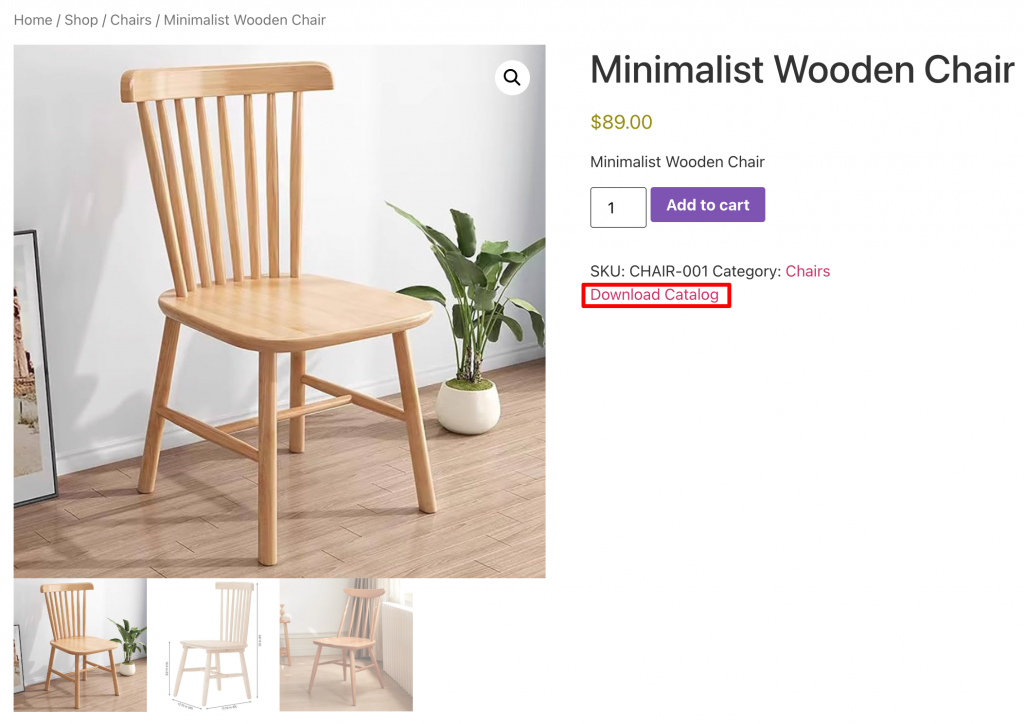
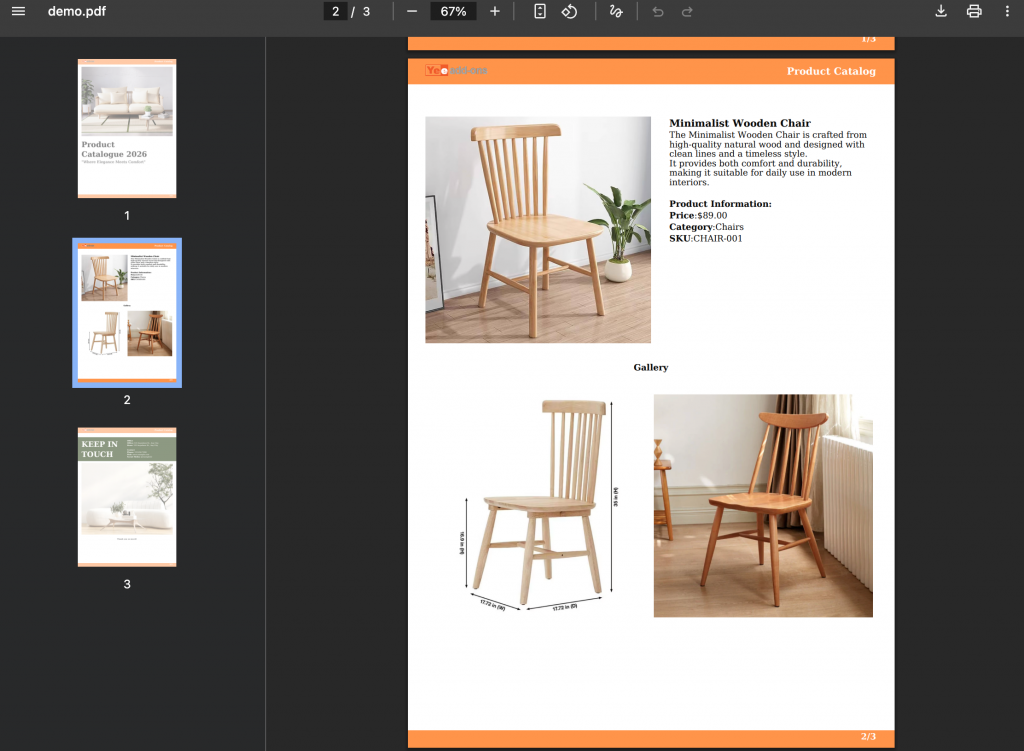
This document will guide you step by step on how to install, configure, and use PDF Catalog Builder to create professional PDF catalogs from your WooCommerce products.
The plugin allows you to:
- Create PDF catalogs for product categories (shop page)
- Create PDF catalogs for single products
- Automatically pull product data (image, name, price, SKU, description)
- Display a Download Catalog button on your shop or product pages
No coding knowledge is required.
Table of contents:
1. Installation
2. Overview: How the Plugin Works
3. Creating a PDF Template
3.1 Category Catalog (Shop / Category Page)
3.2 Single Product Catalog (Product Page)
3.3 Shortcodes
4. WooCommerce PDF Settings
5. Testing the PDF Catalog
1. Installation
- Login to your WordPress Admin Dashboard.
- Navigate to Plugins > Add New.
- Click Upload Plugin and choose the
yeekit-pdf-catalog-builder-for-woocommerce.zipfile. - Click Install Now and then Activate.
2. Overview: How the Plugin Works
The plugin has 3 main parts:
PDF Templates – Design your PDF layout using the drag & drop builder
WooCommerce PDF Settings – Choose where the Download Catalog button appears
Frontend Display – Customers download the PDF from shop or product pages
3. Creating a PDF Template
Go to:
Dashboard → PDF Templates → Add New
This opens the PDF Drag & Drop Builder.
The core of this plugin is the Drag & Drop Template Builder. This allows you to visually design how your PDF pages look.
Please refer to the documentation for more information on how to use the elements in the editor interface. We have detailed instructions on how to use each element on the left side of the document page.
3.1 Category Catalog (Shop / Category Page)
This template is used to generate a PDF containing multiple products.
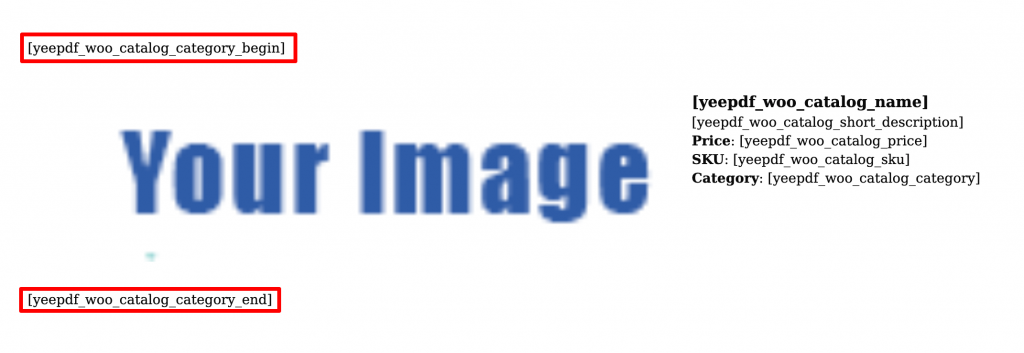
When creating a template for a Category or Shop page, you must “loop” through the products so the PDF knows to repeat the layout for every product found.
- Start Loop:
[yeepdf_woo_catalog_category_begin] - End Loop:
[yeepdf_woo_catalog_category_end]
3.2 Single Product Catalog (Product Page)
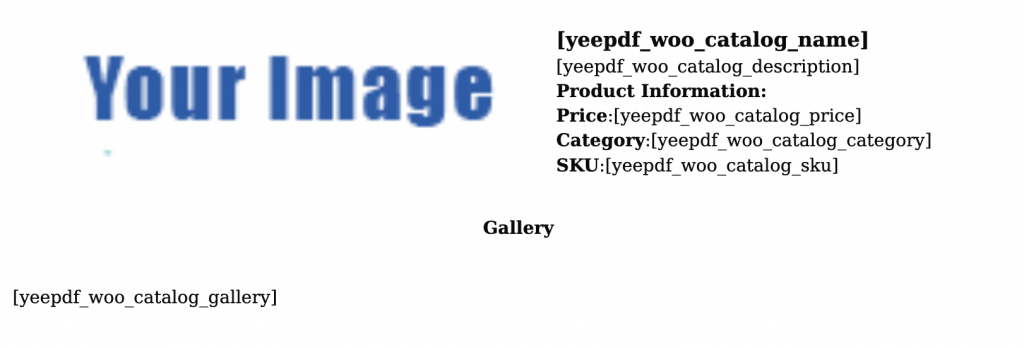
This template is used to generate a PDF for one specific product.
3.3 Shortcodes
Use these shortcodes within your text blocks in the Template Builder to dynamically insert product data.
| Shortcode | What it displays |
|---|---|
[yeepdf_woo_catalog_name] | Product Name: The title of the product. |
[yeepdf_woo_catalog_price] | Price: Formatted price (e.g., “$10.00”). Includes sale price comparison (strikethrough) if on sale. |
[yeepdf_woo_catalog_sku] | SKU: The Stock Keeping Unit identifier. |
[yeepdf_woo_catalog_image] | Main Image: The standard WooCommerce product image HTML tag. |
[yeepdf_woo_catalog_image_url] | Image URL: The raw URL of the main product image. Use this inside your own <img> tags for custom sizing. |
[yeepdf_woo_catalog_description] | Full Description: The main content of the product. |
[yeepdf_woo_catalog_short_description] | Short Description: The product short description/excerpt. |
[yeepdf_woo_catalog_stock_quantity] | Stock Quantity: The number of items available (if stock management is enabled). |
[yeepdf_woo_catalog_category] | Categories: A comma-separated list of category names the product belongs to. |
[yeepdf_woo_catalog_add_information] | Attributes Table: The standard “Additional Information” table (Weight, Dimensions, Attributes). |
[yeepdf_woo_catalog_gallery] | Image Gallery: A pre-formatted 2-column table displaying the product’s gallery images. |
[yeepdf_woo_catalog_reviews] | Reviews: Dispays the latest 10 reviews (Author Name and Comment). |
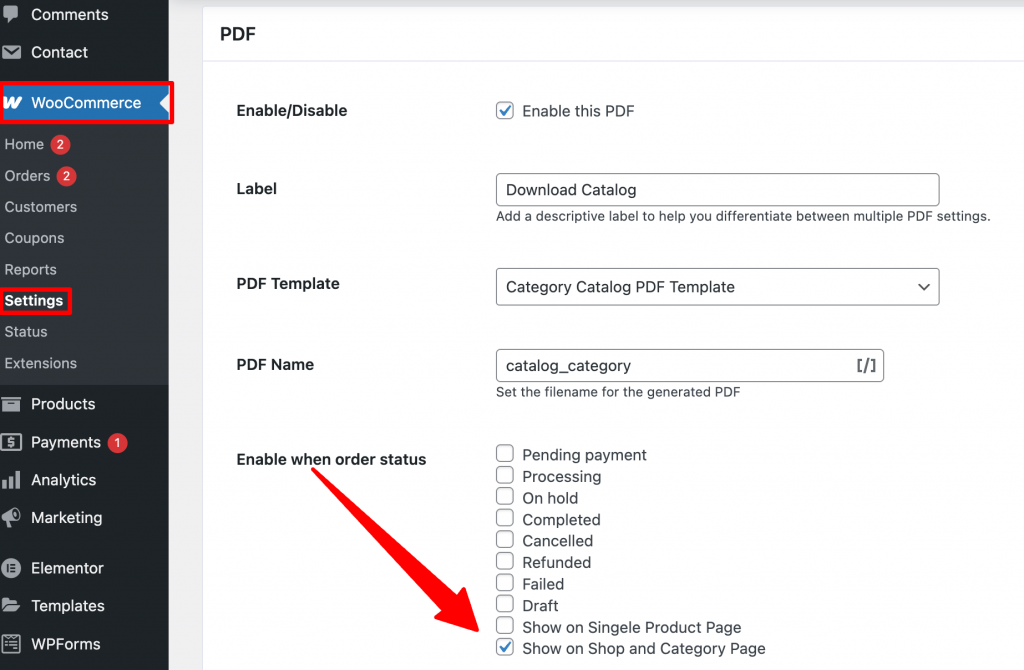
4. WooCommerce PDF Settings
Go to:
WooCommerce → Settings → PDF → Download Catalog
- Enable PDF: Turn ON
- Label: Text shown to customers (e.g. “Download Catalog”)
- PDF Template: Select the template you created
Choose where the Download Catalog button appears:
- Show on Single Product Page: Adds a “Download Catalog” button next to the “Add to Cart” button on individual product pages. This generates a 1-page PDF for that specific product.
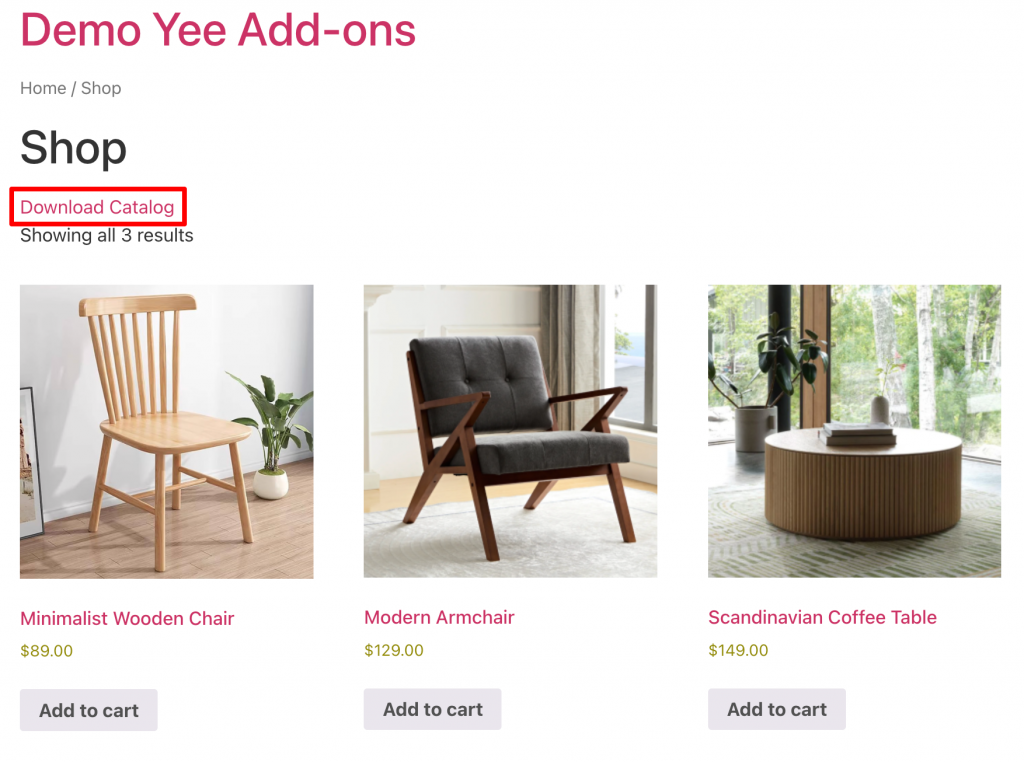
- Show on Shop and Category Page: Adds a “Download Catalog” button on the main shop loop. This generates a multi-page PDF containing all products in the current view (or category).
You can enable one or multiple options.
Click Save Changes.
5. Testing the PDF Catalog
5.1 Test Category Catalog
- Open the Shop or Category page
- Click Download Catalog
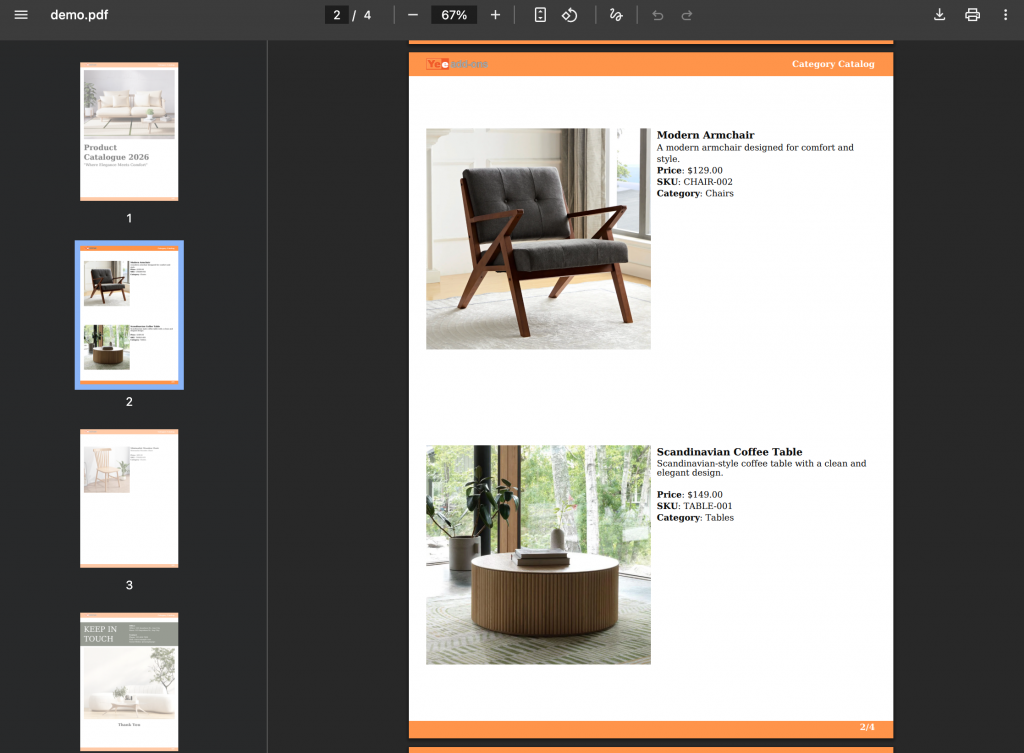
- Verify:
- All products appear
- Images load correctly
- Prices and SKUs are accurate
5.2 Test Single Product Catalog
- Open a Product page
- Click Download Catalog
- Verify the PDF shows only the selected product